Friday, 6 September 2013

#Windows 8 - Unable Create Wireless Adapter As Virtual Switch On Windows 8 Hyper-V

Error-Failed while adding virtual Ethernet switch connections.


Resolution 1 - Re-install Wireless adapter driver
1. Go to device manager uninstall the wireless adapter driver without delete the driver.
2. Re-scan driver.
3. Once wireless driver installed, restart windows. After restart, should able to create wireless adapter as virtual switch.  

Check NTP Server time

Check NTP Server time
 
In command prompt, type net time \\IP address
 

Monday, 22 July 2013

SCCM 2012 - Setup unable to connect to SQL Server with the connection infomation provided


1. Open SQL Server Configuration Manager
2. Expend SQL Server Network Configuration, select Protocols for MSSQLSERVER (instance name for sccm database).
3. Make sure TCP/IP Enable.
4. Right click on TCP/IP, select properties, make sure under IPAll, TCP Dynamic Ports is blank and TCP Port is correct.
5. Restart SQL server service.

Thursday, 6 June 2013

#WSUS - install on Windows Server 2012 fail - fatal error failed to start and configure the wsus service

Error 'fatal error failed to start and configure the wsus service'

1. Remove WSUS administrator site on IIS Manager.
    Right click WSUS administrator, remove.

Wednesday, 5 June 2013

#SCCM 2012 - SCCM 2012 SP1 Error - Setup could not install SQL RMO configmgr installation cannot be completed

Setup could not install SQL RMO configmgr installation cannot be completed


1. Close the installation and exit SCCM setup.
2. Navigate SCCM prequisite folder, uninstall SQL Management Object by run SharedManagementObjects.msi.

 3. Run the SCCM Setup agains as normal.

Monday, 27 May 2013

#Update SQL 2008 r2 Service Pack 2 into SQL 2008 r2 Installation Pack - Slipstream procedure

Install SQL 2008 R2 in Windows server 2012 Cluster required SP


1. Download SQL 2008 r2 sp2. Save in C: drive
     http://www.microsoft.com/en-my/download/details.aspx?id=30437

2. Extract SQL sp2 to C: drive.
    Command prompt: SQLServer2008R2SP2-KB2630458-x64-ENU /x:C:\SP2

3. Run the Service pack setup files.
    Command prompt: SP2\1033_enu_lp\x64\setup\sqlsupport_msi\sqlsupport.msi


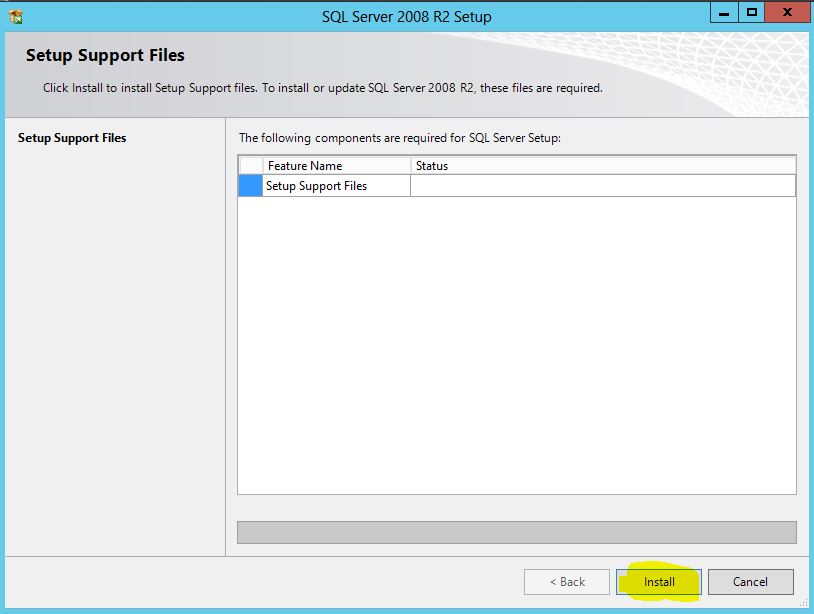
4. Run the SQL setup files from SQL media kit.
     a) Change directory. Command prompt: z:    (my media kit in Z:)
     b) Run setup.  Command prompt: setup.exe /PCUSource=C:\SP2
    
    Note: If install SQL 2008 r2 in Windows Server 2012, Program Compatibility Assistant will prompt. Select Run the program without getting help.

5. Install SQL as normal.


6. Verify have completed a slipstream update.

    a) On Installation Rules, Update Setu Media Language Compatibility show in list as below.

    b)On ready to install, right panel under action, install slipstram show as below.

#Windows Server 2012 - Install .Net Framework 3.5 features

First remove windows update KB below if installed.
  • KB2966826
  • KB2966827
  • KB2966828


Method 1

1. Add feature, select .Net Framework 3.5 features

2. Select Specify an alternate sources path (highlighted) 

3. Enter D:\Sources\SxS\     (D: = Windows server installation kit or mount the ISO, my drive here is D:)

4. .NET Framework installed.

Note: If unable to install, try copy ISO to local disk and mount agains, or change another installation kit.