Thursday, 10 August 2023

#Unable detect Wireless after disjoined domain

 Issue:

Computer unable to detect any wireless after disjoined domain. Wireless network policies applied in GPO.


Solution:

To resolve the issue, delete the deny wireless filter from CMD.

netsh wlan delete filter denyall infrastructure

netsh wlan delete filter denyall adhoc

Sunday, 28 May 2023

#Windows CA - the requested certificate is not supported by this ca

Certificate template does not show in certificate enrollment.


Error: The requested certificate template is not supported by this CA.

A valid certification authority (CA) configured to issue certificates based on this template cannot be located, or the CA does not support this operation, or the CA is not trusted.


Solution: Enable the certificate template.


1. Go to certification Authority.

2. Right click on certificate template, click on New, select Certificate Template to Issue.


3. Select your certificate template and click OK.


Wednesday, 22 March 2023

Gophish - Windows installation and configuration (phishing email)

Download link:

Gophish: Releases · gophish/gophish · GitHub

NSSM: NSSM - the Non-Sucking Service Manager


Copy and extract downloaded files

1. Extract the Gophish and NSSM files.


Edit the configuration

1. 


Use NSSM to install Gophish.exe as Windows services

1. Run CMD as administrator.

2. Navigate to nssm.exe. (nssm install gophish)


3. NSSM service installer will launch. 
4. From Application Path, navigate and select Gophish.exe.


5. Select install service.


6. From Windows services, start the gophish service.


Sunday, 8 January 2023

#VMware vCenter - log storage disk space full

Method 1: Increase disk space

1. Increase VCSA's virtual disk size.

2. Run the following command in VCSA. (Alt + F1 to enter shell)

For VCSA ver. 6.0

vpxd_servicecfg storage lvm autogrow

For VCSA ver. 6.5 or 6.7

/usr/lib/applmgmt/support/scripts/autogrow.sh


Method 2: Clean up disk space

1. To list file system disk space:

To list all disk space: df -h


or

To list disk exceed 75%: df -h | awk '0+$5 >=75 {print}'


2. Remove the catalina*log and localhost_access* from following paths.

/storage/log/vmware/sso/tomcat

/storage/log/vmware/eam/web

/storage/log/vmware/lookupsvc/tomcat    (for ver 7.0 only)

To list:

ls -lha catalina*log
ls -lha localhost_access*

To remove:

rm catalina*log
rm localhost_access*


Monday, 12 December 2022

Using OPEN SSL to convert a certificate from the .PFX format to the .PEM format

1.  From command prompt run following command:

openssl pkcs12 -in <import .pfx cert from where> -out <export .pem file to where> -nodes

openssl pkcs12 -in c:\openssl\SSLcert.pfx -out c:\openssl\servercert.pem -nodes

2. Enter SSL cert pricate key password.

3. If MAC verified OK show, mean .pem cert successful exported. 


Thursday, 8 December 2022

#Install OPEN SSL for Windows

Download source: https://sourceforge.net/projects/openssl/files/openssl-1.0.2j-fips-x86_64/

1. After download, extract the zip file. (example: c:\)

2. Go to system properties (or from RUN enter sysdm.cpl)


3. Go to Advanced > Environment Variables.


4. In Environment Variables, select Path, click Edit.


5. In Edit environment variable, select New and enter the extracted directory.
    (example: c:\OpenSSL\bin). Click OK.


6. In Environment Variables, click New.


7. Enter value below:

Variable name: OPENSSL_CONF

Variable value: c:\OpenSSL\bin\openssl.cnf


8. Restart computer.

9. Run Open SSL in cmd. Type openssl version


Sunday, 4 September 2022

Fortigate - Block all PING/ICMP and allow PING/ICMP from a specific IP only

Step 1:

Create new addresses or addresses group. (In this example is Trusted PING)


Step 2:

Configure local-in-policy

Edit 1 is to allow ping only for specific IP in addresses group.

Edit 2 is to deny all IP addresses.

From CLI

# config firewall local-in-policy

# edit 1

# set intf "wan1"

# set srcaddr "Trusted PING"

# set dstaddr "all"

# set action "accept"

# set service "ALL_ICMP"

# set schedule "always"

# next

# edit 2

# set intf "wan1"

# set srcaddr "all"

# set dstaddr "all"

# set service "ALL_ICMP"

# set schedule "always"

# next

# end


SAMPLE:


Sunday, 27 March 2022

Download Adobe Reader DC offline installer

Use the following link


https://ardownload2.adobe.com/pub/adobe/acrobat/win/AcrobatDC/2200120085/AcroRdrDCx642200120085_en_US.exe

Description:


Monday, 7 February 2022

Windows Remote Desktop Server - Start Menu Not Working

Windows event log error: Event 1000, DistributedCOM

Issue: Start Menu Not Working (Unresponsive)


Solution:

Create a new key 

HKEY_LOCAL_MACHINE\SYSTEM\CurrentControlSet\Services\SharedAccess\Parameters\FirewallPolicy

Value: DWORD

Name: DeleteUserAppContainersOnLogoff

Data: 1


Thursday, 3 February 2022

Remote Desktop connection terminated. RDP disconnected.

Error:
Windows Event ID 1000 Application Error.


Symptoms:
Remote desktop connection disconnected automatically after login successfully.

Resolution:
Remove local resources printer from mstsc.exe.
(Uncheck printer from local recourses)


Saturday, 8 January 2022

Microsoft DNS server cannot be found event ID 4000

Error:

The description for Event Id (4000) in Source (Microsoft-Windows-DNS-Server-Service) cannot be found. Either the component raises this event is not installed on your local computer, or the installation is corrupted.


Cause:

1. DC/DNS server has lost its Secure channel with itself or PDC. (or restore DC/DNS from old backup)

Solution:

1. Point primary DNS to another DC/DNS IP address.
2. Run CMD as administrator. Type command below:

netdom resetpwd /server:<PDC.domain.com> /userd:<Domain\domain_admin> /passwordd:*

Example:  

netdom resetpwd /server:<DC.contoso.com> /userd:<contoso\administrator> /passwordd:*

3. Enter password of Domain\domain_admin  (user you enter in step 2). 
4. Reboot DC/DNS.


Thursday, 2 September 2021

#Uninstall software manually

 Reason:

1. Unable to uninstall software from Control Panel

2. Software not listed in Control Panel


Solution:

1. Run command prompt as administrator

2. Enter wmic in command prompt. (result: enter to wmic:root\cli mode)

3. Enter product get name in command prompt. (result: name list of software installed)

4. Enter product where name="name of software listed in previous screen that you want to uninstall" call uninstall in command prompt.

4. Enter Y to confirm uninstall in command prompt.

Sunday, 11 July 2021

#File Server Permission - Failed to enumerate objects in the container. access is denied


Unable to access or delete the folder/file


Solution: 

1. Run command prompt as administrator.

2. Run command as below: (run every single command each time)

  • takeown /F C:\Location_Path
  • takeown /F C:\Location_Path /r /d y
  • icacls C:\Location_Path /grant Administrators:F
  • icacls C:\Location_Path /grant Administrators:F /t
(C:\Location_Path = Your folder/path loacation)

#WSUS - Connection Error. An error occurred trying to connect the WSUS server


Solution:

1. Close WSUS console. 

2. Go to c:\users\<currentlogonuser>\AppData\Roaming\Microsoft\MMC.

3. Delete MMC file


Sunday, 27 June 2021

Verify the AD account's password

To confirm AD account's password.

Method

1. Run the PowerShell with command below:

Start-Process -FilePath cmd.exe /c -Credential (Get-Credential)


2. Enter AD account you wish to verify.

Example:

Users name: contoso\administrator

Passowrd: Abc123!!!


Caution: Account may locked if you enter wrong password. (settings depend on you password policy)

Sunday, 6 June 2021

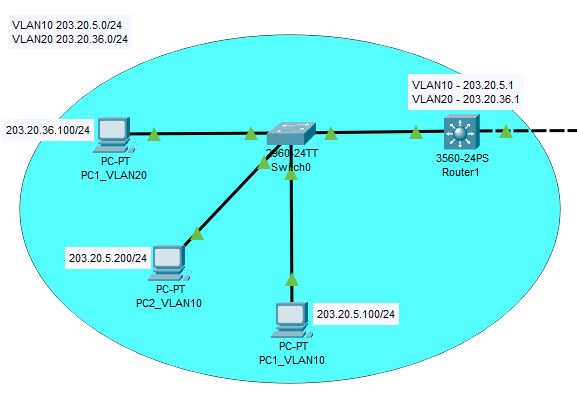
Cisco - Configure ACL (Extended)


Scenario

IP: Any VLAN20 (203.20.36.0/24) deny access VLAN10 (203.20.5.0), except host 203.20.5.200


Info

access-list extended name = FROM_VLAN20

VLAN ID = 20


Step

1. Create extended access-list. (I named it FROM_VLAN20)

Router1(config)#ip access-list extended FROM_VLAN20


2. Create 2 access lists under access-list extended VLAN20.

Router1(config-ext-nacl)#10 permit ip any host 203.20.5.200

Router1(config-ext-nacl)#100 deny ip any any

(*the red number is weight)


3. Specify access control for packets on interface VLAN 20.

Router1(config)#interface Vlan 20

Router1(config-if)#ip access-group FROM_VLAN20 in


4. To show inter VLAN's access group.

Router1#sh run


5. To show access list with weight.

Router1#sh acc


Tuesday, 1 December 2020

Microsoft SQL - Enable SQL Audit Log (in Windows security log)

Prerequisite

1. Enable Audit Object Access.

  • Go to local computer policy (go to RUN, type gpedit.msc). If server manage by GPO, apply in GPO.
  • Go to Computer Configuration >  Windows Settings > Seurity Settings > Local Policies > Audit Policy > Audit Object Access
  • Enable the policy (check the Success or/and Failure)


2. Grant right to SQL service account.

  • Go to local computer policy (go to RUN, type gpedit.msc). If server manage by GPO, apply in GPO.
  • Go to Computer Configuration >  Windows Settings > Seurity Settings > Local Policies > User Right Assignment > Generate security audits
  • Add SQL service account.


3. Change Registry value (optional)

  • Go to Registry  HKEY_LOCAL_MACHINE\SYSTEM\CurrentControlSet\Services\EventLog\Security\MSSQL$<InstanceName>$Audit\EventSourceFlags
  • Change the value from 0 to 1.


Enable SQL Audit Log


1. Connect to SQL database with SQL Management tool.
2. Go to Security > Audits.
3. Right on Audit, select New Audit...
4. Configure audit settings. Select audit destination, Security log.


5. Right click on the newly created audit, select Enable audit.

Sunday, 8 November 2020

File Server Resource Manager - Quota size not reset / update

Issue: Files deleted in quota folder but disk size not reduce.


Solution 1: Run command below in cmd:-

dirquota quota scan /path:<path>


Example 1 (for folder specified by path):

dirquota quota scan /path:D:\.

Example 1 (for all immediate subfolders of path):

dirquota quota scan /path:D:\*

Example 1 (for fall recursive subfolders of path):

dirquota quota scan /path:D:\...


* you can create a batch file and run in task scheduler

Sunday, 1 November 2020

This App has been blocked by your system administrator


Solution:

1. Go to Regedit

HKLM\SOFTWARE\Microsoft\Windows\CurrentVersion\Policies\System

Value Name: ConsentPromptBehaviorUser

Value: 3


Friday, 24 July 2020

#WSUS - Remove WSUS completely / Reinstall WSUS with fresh data

1. Run the Powershell command below to uninstall the WSUS:-

Remove-WindowsFeature -Name UpdateServices,UpdateServices-DB,UpdateServices-RSAT,UpdateServices-API,UpdateServices-UI -IncludeManagementTools

2. Remove WSUS database.

For SQL: 

Delete the SUSDB.mdf and SUSDB_log.ldf in SQL database.

For WID (Windows Internal Database):

Delete SUSDB.mdf and SUSDB_log.ldf in C:\Windows\WID\Data.